Edge, Chrome - Clear Cookies for Individual Site
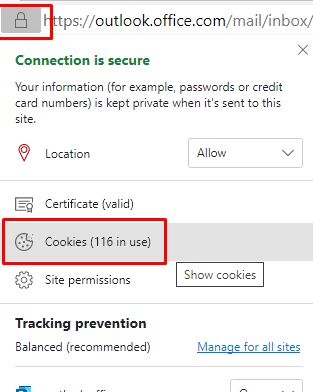
- Click the Lock next to the site URL
Click Cookies
Click the Remove button for each cookie listed
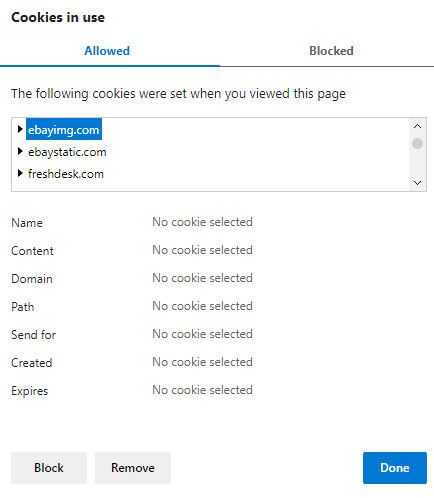
- Click Done
- Close the browser and re-open it
Related Articles
Edge, Chrome - Clear Cached Data
PressCtrl + Shift + Delete Set the “Time Range” to “All Time” Make sure “Cached image and files” Click “Clear Data” Close the browser and re-open it.
Adobe Flash Player End of Life
As of December 31, 2020 Adobe has ended support of Adobe Flash and will block Flash Player from operating in January 2021, all major browser manufacturers will also block it from operating. Treasure Coast IT Solutions will not be able to assist our ...
Internet Explorer End of Life - 6/15/22
Starting June 15, 2022, Microsoft will gradually transition users from the unsupported IE11 desktop app to Microsoft Edge. The IE11 desktop app will be progressively redirected to Microsoft Edge over several months. Additionally, the IE11 desktop app ...
Releasing Held Outbound Emails
1) If a sent email violates an information protection policy you will receive an email that will allow you to manually override the policy. a) On the email you can see the account the offending email was sent from (orange) b) Click the Review Message ...
About AutoElevate
In short, the system in place is designed to: Eliminate the waitand hassle byautomatically granting Admin privilegesspecifically for things that have been evaluated and previously approved Keep you safeby automatically blocking things that we know ...