Releasing Held Outbound Emails
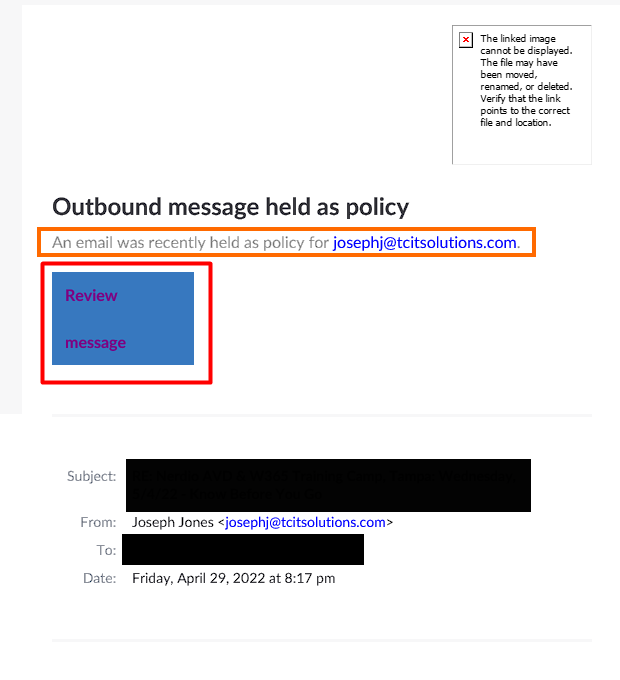
1) If a sent email violates an information protection policy you will receive an email that will allow you to manually override the policy.
a) On the email you can see the account the offending email was sent from (orange)
b) Click the Review Message link to view and release the message (red)
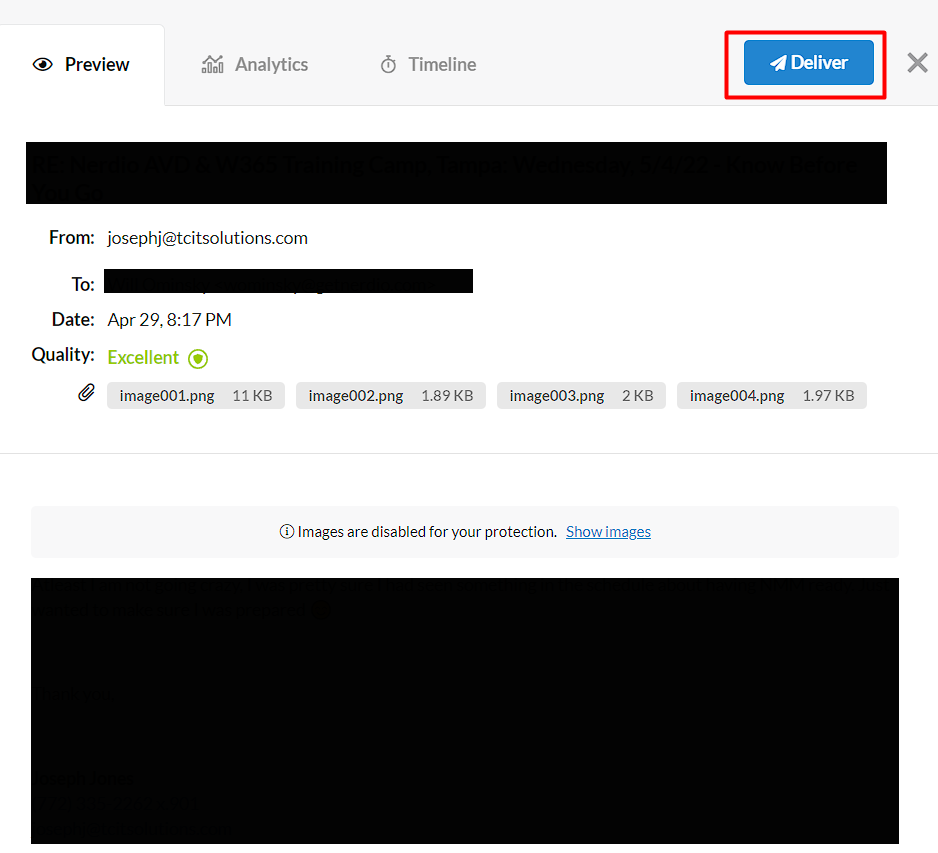
2) After clicking on Review Message you will be brought to the email filtering site.
3) Here you can choose to Deliver the message (red) (Go To Step 5) or review why the message was held (Go to Step 4).
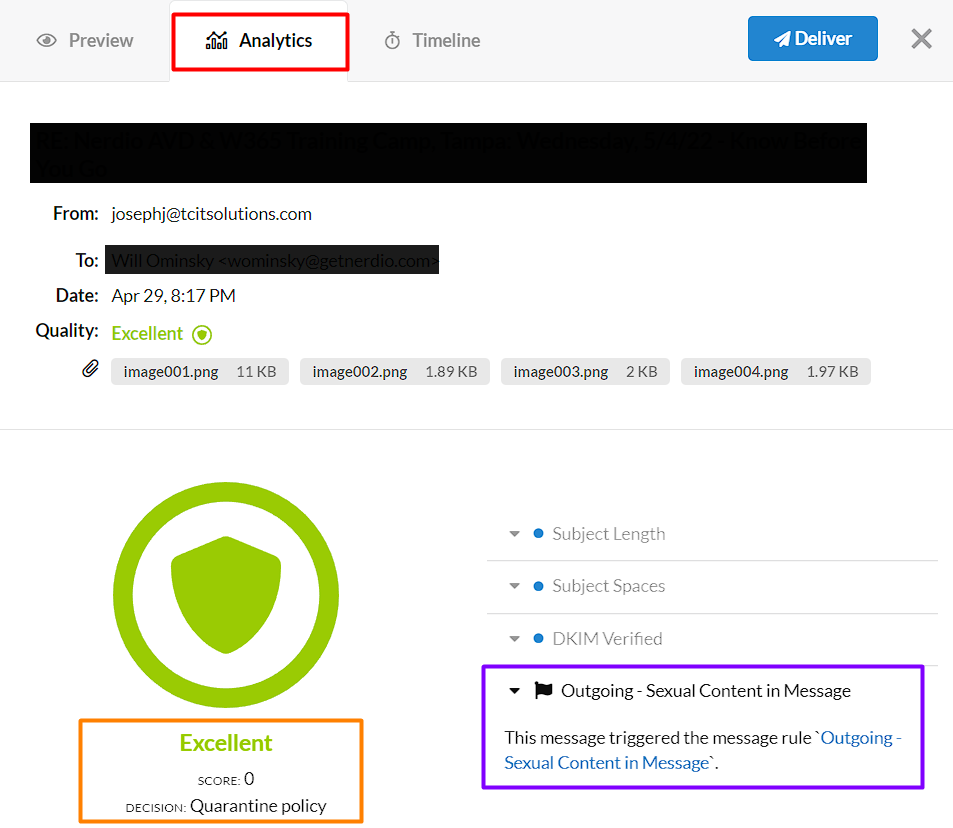
4) To see why the email was held, click on the Analytics tab (red).
a) The email's SPAM score (orange) is shown along with its deliverability rating
b) The reason the email was held is shown along with the triggered rule (purple)
i) Sometimes emails may be held incorrectly due to words that are innocuous in context.
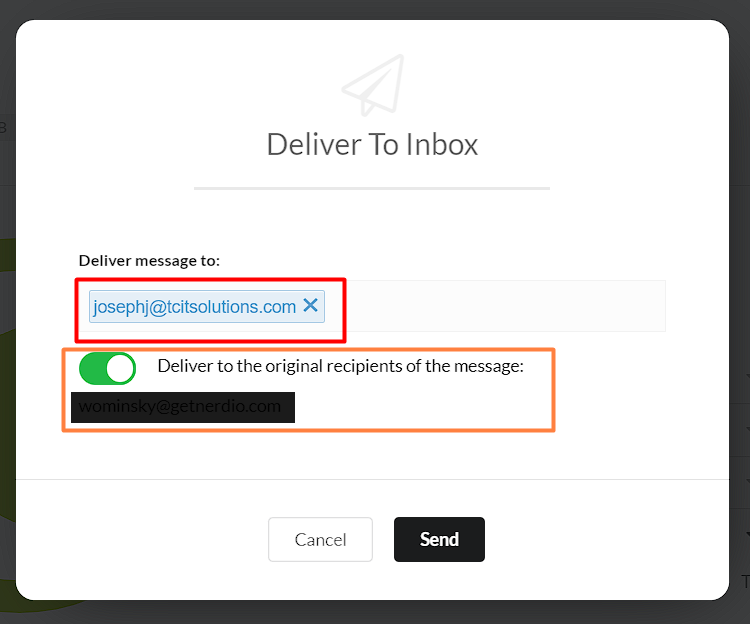
5) If you click the deliver button you will be able to deliver the email to your inbox, another user, and to the original recipient.
a) Additional recipients can be added or removed in the "Deliver message to" box (red)
b) The message can be delivered (or not delivered) to the original recipient(s) by toggling the switch, the original recipients are listed underneath (orange)
Related Articles
Email Security Message Review
Review emails are sent depending on your companies schedule. Normally emails are sent multiple times per day. If you do not review the messages they are held for future review. You will receive an email from TCIT Email Security with a subject such as ...Outlook Desktop Shared Mailbox Access/Use
If you don't see the shared email folder, wait a couple of minutes, close, and then restart your Outlook app. All emails sent to the shared email address will show up in this folder. Your shared mailboxes will be listed on the left window, you may ...