(New) Using the Quarantine Digest Email
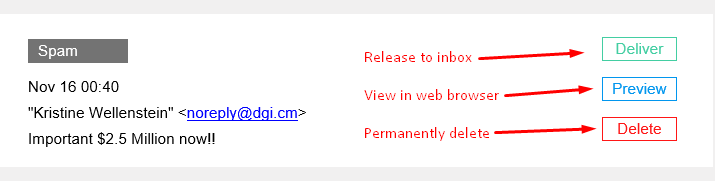
You will receive Quarantine Digest Email twice per day usually at 9 am and 4 pm depending on your organization's settings (or less if no mail has been quarantined). You can perform most functions directly from the email. You can also request an immediate Quarantine Digest Email by clicking the Request button towards the bottom of a previous email.
For most customers marketing and low score SPAM are delivered to yourOutlook Junk Emailfolder.
- Preview the email safely
- Click the Preview button to preview the email in your web browser safely
- Release the email to your inbox
- Click the Deliver button to release the email to your inbox
- The deliver button may be unavailable for certain messages which the system determines should be properly reviewed by our staff first (see Request)
- Request the email be reviewed for release
- Click the Request button to have our staff review the email and determine if it is safe for release
- Unblock the sender permanently
- Click the Deliver button and then on the confirmation web page click the Always Allow Sender Address option
- Messages will still be scanned for threats and blocked if a threat is found.
- Unblock the sender's domain permanently
- Click the Deliver button and then on the confirmation web page click the Always Allow Sender Domain option
- Messages will still be scanned for threats and blocked if a threat is found.
- Additional options
- Additional possible options and information can be found in the attached PDF
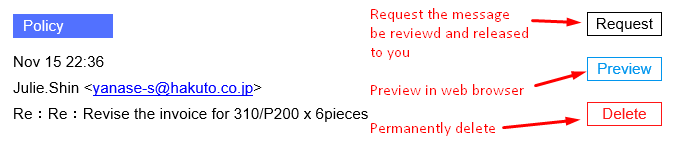
Request an immediate Quarantine Digest Email by clicking the Request button towards the bottom of a previous email.

Related Articles
(New) Using Outlook's Junk Email
Email is automatically removed from the Junk Email folder after 14 days and can't be recovered after that. TCIT Email Security works with Office 365 junk email rules. If you want to block a sender (and send their messages to the junk email folder) ...Email Security Message Review
Review emails are sent depending on your companies schedule. Normally emails are sent multiple times per day. If you do not review the messages they are held for future review. You will receive an email from TCIT Email Security with a subject such as ...Outlook Desktop Shared Mailbox Access/Use
If you don't see the shared email folder, wait a couple of minutes, close, and then restart your Outlook app. All emails sent to the shared email address will show up in this folder. Your shared mailboxes will be listed on the left window, you may ...Bracket File Transfer and Upload
Go to:https://bracket.email/ Enter your email address and click Next On the confirmation, email click Sign In To share a file click New Share on the left You can also get a sharing link from here that you can use to send to contacts to enable them to ...About AutoElevate
In short, the system in place is designed to: Eliminate the waitand hassle byautomatically granting Admin privilegesspecifically for things that have been evaluated and previously approved Keep you safeby automatically blocking things that we know ...