(New) Using Outlook's Junk Email
Email is automatically removed from the Junk Email folder after 14 days and can't be recovered after that.
TCIT Email Security works with Office 365 junk email rules.
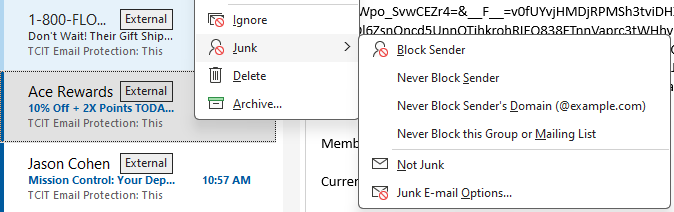
If you want to block a sender (and send their messages to the junk email folder) you can right click on the message, go to the Junk submenu, and click Block Sender
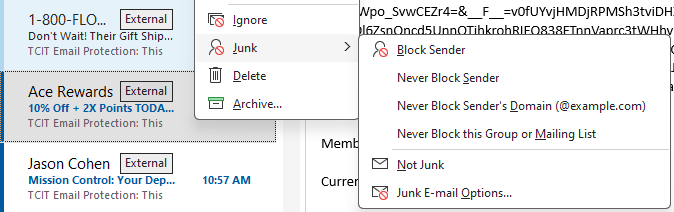
Junk Email
You can view and unblock messages moved to the Junk Email folder using Outlook's native interface. Access your Junk Email folder in Outlook from the left side folder list.

- View a single message without unblocking the sender
- You can view the message in the junk email folder. However, only text will be displayed, to view the full message with graphics:
- Drag and drop the message to your Inbox folder
- Right-click on the message, go to the Junk submenu and click Not Junk(Hotkey: CTRL+ALT+J)
- You also have the option when doing this to create a rule to unblock the sender's email address in the future
- Unblock a sender's email address
- Right-click on the message, go to the Junk submenu, click Never Block Sender
- Unblock a sender's domain
- Right-click on the message, go to the Junk submenu, click Never Block Sender's Domain
- Review the Junk Email rules you have created
- Right-click on the message, go to the Junk submenu, click Junk E-mail Options
Related Articles
(New) Using the Quarantine Digest Email
You will receive Quarantine Digest Email twice per day usually at 9 am and 4 pm depending on your organization's settings (or less if no mail has been quarantined). You can perform most functions directly from the email. You can also request an ...Outlook Desktop Shared Mailbox Access/Use
If you don't see the shared email folder, wait a couple of minutes, close, and then restart your Outlook app. All emails sent to the shared email address will show up in this folder. Your shared mailboxes will be listed on the left window, you may ...Email Security Message Review
Review emails are sent depending on your companies schedule. Normally emails are sent multiple times per day. If you do not review the messages they are held for future review. You will receive an email from TCIT Email Security with a subject such as ...Outlook Mobile App Shared Mailbox Access/Use
To access a shared mailbox on a mobile device, use the following steps. Sign in to your primary account in Outlook for iOS or Android. Tap the Add Accountbutton in the left navigation pane, then tap Add a Shared Mailbox. If you have multiple accounts ...About AutoElevate
In short, the system in place is designed to: Eliminate the waitand hassle byautomatically granting Admin privilegesspecifically for things that have been evaluated and previously approved Keep you safeby automatically blocking things that we know ...